Video editing guide 2026: 10 best video editors for short form, long form and social media video reviewed
 Pavan Ravikumar·Marketing Engineer, Velocity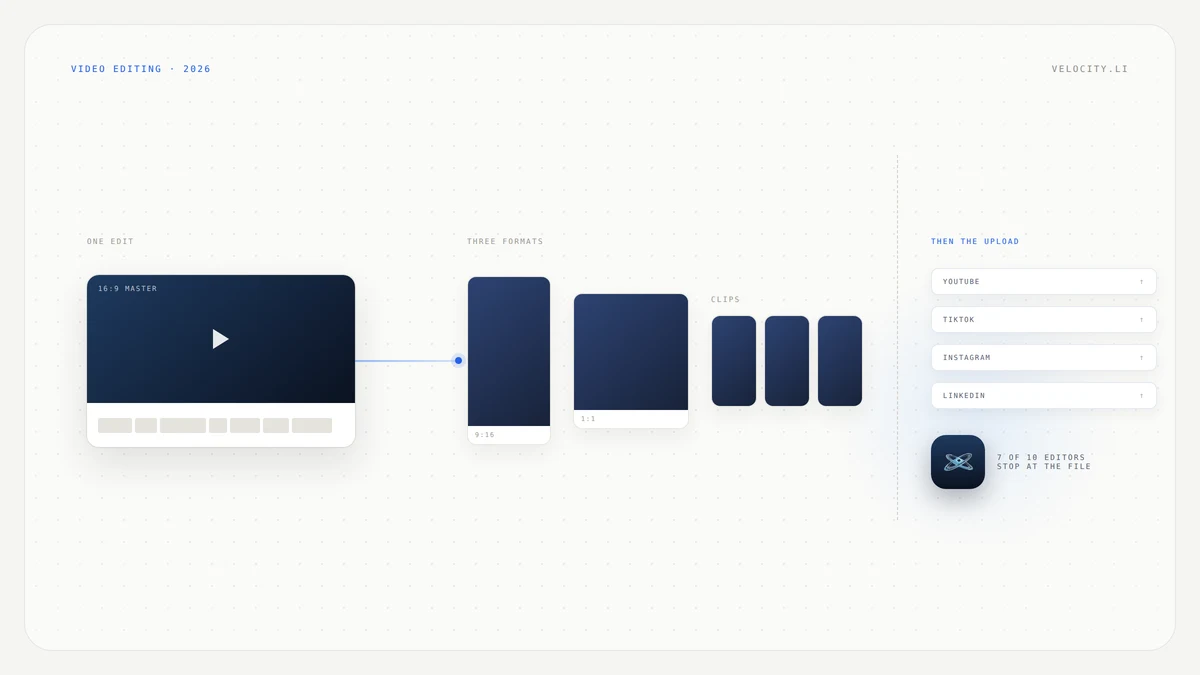
You have one recording, and now it needs to become three things: the full-length cut for YouTube, a vertical version for Reels and TikTok, and a handful of clips sized for every other feed. The question most creators and teams land on is simple: which video editor handles short form, long form and social media video without forcing you into three separate projects?
One part of that question most comparisons skip is publishing. Of the ten editors here, only three can put a finished video on a platform: DaVinci Resolve to YouTube, Vimeo and X, OpusClip to YouTube, TikTok and Instagram, and Canva to Facebook, Instagram, X and LinkedIn on Pro. Two that sound like exceptions are not. Final Cut Pro's "Social Platforms" destination is an export preset, and Descript's "publishing actions" generate text drafts. Velocity handles the posting step but is not an editor.
This guide compares 10 video editors by what each one does with a long recording, a vertical cut, and the upload that comes after. Every tool section covers what it does, what you will like, and where it falls short. We review documented capabilities from each vendor's product pages and help centers rather than claim one editor is best for every kind of video.
What are the best video editors for publishing to short form, long form, and social media video platforms?
- Velocity: A strong fit for publishing the finished video per channel, though it does not edit video.
- Adobe Premiere Pro: Best for social video features inside a full professional timeline.
- DaVinci Resolve: Best for vertical video editing that also uploads to social.
- Final Cut Pro: Best social and vertical video features for Mac and iPad editors.
- CapCut: Best official social media video editor for short form on desktop and mobile.
- Descript: Best for editing video by editing its transcript.
- OpusClip: Best for turning one long video into a month of short clips.
- VEED: Best browser-based editor for subtitles and quick social cuts.
- Kapwing: Best browser-based editor for transcript trimming and resizing.
- Filmora: Best consumer editor with auto reframe across desktop and mobile.
- Canva: Best for teams that design the video and the post in one place.
Video editors for short form, long form and social media compared
| Tool | Best for | Short form (vertical) | Long form | Posts to social directly |
|---|---|---|---|---|
| Velocity | Publishing the finished video per channel | Not an editor | Not an editor | Yes, but it does not edit |
| Adobe Premiere Pro | Social video features in a professional timeline | Auto Reframe to vertical | Full multicam timeline | Not documented |
| DaVinci Resolve | Vertical editing that also uploads | Cut and Edit pages, vertical timeline | Full professional NLE | YouTube, Vimeo, X |
| Final Cut Pro | Mac and iPad editing with vertical presets | Social Platforms export preset | Magnetic Timeline | No, export preset only |
| CapCut | Short form on desktop and mobile | Auto Reframe with platform presets | Basic timeline | Not documented |
| Descript | Editing video by editing its transcript | Clip generation from long video | Transcript-based timeline | No, generates text only |
| OpusClip | Turning one long video into many clips | AI clipping with reframing | Source video only | YouTube, TikTok, Instagram |
| VEED | Subtitles and quick social cuts | Platform-specific video makers | Basic timeline | No, export only |
| Kapwing | Transcript trimming and resizing | Resizer with popular dimensions | Basic timeline | No, export only |
| Filmora | Auto reframe across desktop and mobile | Auto Reframe with platform presets | Multi-track timeline | Not documented |
| Canva | Designing the video and the post together | One-click resize | Simple cuts | Facebook, Instagram, X, LinkedIn (Pro) |
What to look for in a video editor for short form, long form and social media
Vertical and square output: the editor needs to take a 16:9 master to 9:16 or 1:1 without a crop-and-guess workflow. Auto Reframe in Adobe Premiere Pro, CapCut and Filmora tracks the subject. Canva and Kapwing resize in one click, and OpusClip reframes while it clips.
Long form capability: a 30-minute interview needs multi-track audio, color adjustment and the ability to move sections without breaking sync. Adobe Premiere Pro, DaVinci Resolve and Final Cut Pro are built for it. The browser and AI tools suit shorter edits.
Captions and subtitles: burned-in captions are expected on every short form platform. CapCut, VEED, Kapwing, Descript and Filmora generate them automatically. Adobe Premiere Pro and Final Cut Pro include speech-to-text on the timeline.
Clip extraction: turning one long video into many short ones is a daily job for social teams. OpusClip, Descript and Filmora's Smart Short Clips generate clips from a long source. In a traditional timeline you mark ranges and export them one at a time.
Publishing to platforms: only DaVinci Resolve, OpusClip and Canva put the finished video on a platform from inside the tool. Everyone else ends at a file, and across four or five channels that upload step is real work.
Where it runs: Adobe Premiere Pro, DaVinci Resolve and Filmora cover Windows and macOS. Final Cut Pro is Mac and iPad only. CapCut covers desktop and mobile. VEED, Kapwing, OpusClip and Canva run in a browser.
Learning curve: DaVinci Resolve and Adobe Premiere Pro are professional tools and take time. CapCut, Canva and VEED are usable in the first session. Descript's transcript-first model is unlike a timeline but quick to pick up.
Velocity: best for publishing the finished video, not editing it
Best for
- Teams that already have a finished video and need it posted, captioned and scheduled across YouTube, TikTok, LinkedIn, Facebook, Instagram and X
- Creators who want platform-ready posts written in their voice without copying and pasting across upload forms
- Social workflows where the bottleneck is the last mile, not the edit itself
What it does
Velocity is a publishing platform, not a video editor. It does not provide a timeline, trimming or export; every video arrives already finished from whatever editor produced it.
What Velocity does is the step that comes after. You describe the post in conversation, and the AI agent researches the angle, applies your brand profile and writes a platform-ready post. The output covers reels, stories, carousels, threads, captions and hashtags, shaped differently for each channel. A human approves before anything goes live.
Velocity focuses on the social-media workflow: creating content in brand context, review, scheduling, publishing, and basic analytics. Channels documented on the platform include YouTube, TikTok, LinkedIn, Facebook, Instagram and X.
If what you need is the edit itself, every tool below does that, and DaVinci Resolve is the most capable of them at no cost to start.
What you'll like
- Scheduling in natural language or letting the agent pick the time, with approval before anything publishes
- A content calendar that shows every channel in one view
- Posts written per platform rather than one caption pasted everywhere
- Brand context applied automatically so tone and terminology stay consistent
Why it might not be a good fit
- No editing at all. Velocity does not edit video. There is no timeline, no trimming, no aspect ratio control and no export, so the file has to be finished before it reaches Velocity.
- Social channels only, and newer. A campaign that also covers email or a blog needs something else alongside Velocity, and it is newer than Adobe, Blackmagic Design, Apple and Canva.
Adobe Premiere Pro: best for social video features inside a full professional timeline
Best for
- Professional editors who need multicam, color grading, audio mixing and After Effects round-trips in one subscription
- Teams that cut long form video and then reframe it for social platforms using Auto Reframe
What it does
Adobe Premiere Pro is the professional default for video editing and carries the deepest feature set on this list. The timeline handles multicam editing, advanced color work, audio mixing and a round-trip to After Effects for motion graphics.
The social video editing features center on Auto Reframe, which Adobe describes as a tool that "intelligently reframes video clips for different aspect ratios and social platforms." Speech to Text and built-in captions let you add subtitles without leaving the timeline.
Choose Adobe Premiere Pro when you need a full professional timeline and plan to reframe for social formats from inside the same project. It is subscription software.
What you'll like
- Auto Reframe tracks subjects and reframes to vertical, square or any custom ratio
- Speech to Text generates captions directly on the timeline
- Deep integration with After Effects, Audition and the rest of Adobe's creative suite
- The widest third-party plugin and template ecosystem of any editor here
Why it might not be a good fit
- Publishing is not documented. Adobe's Premiere Pro pages describe export, not posting to social platforms, so four channels means four manual uploads.
- Subscription cost and complexity. The learning curve is steep, and the subscription model means ongoing cost whether you edit every day or once a month.
DaVinci Resolve: best for vertical video editing that also uploads to social
Best for
- Editors who want a full professional timeline with a capable free version
- Anyone who wants to upload directly to YouTube, Vimeo or X from inside the editor
What it does
DaVinci Resolve is organized into purpose-built pages: Cut, Edit, Fusion, Color, Fairlight, Media and Deliver, plus a newer Photo page. The Cut page is described by Blackmagic Design as "Designed for editors to turn around work fast!" while the Edit page is positioned as "The world's fastest and most advanced professional NLE."
What sets Resolve apart on this page is the upload fact. You can output and upload files to YouTube, Vimeo and X from anywhere using the quick export tool. Among the ten editors compared, DaVinci Resolve is one of only three that posts to a social platform, and it is the only full professional timeline that does.
A capable free version covers most editing, color and audio features. The paid Studio version adds the DaVinci Neural Engine AI features and support for higher frame rates and bit depths.
Choose DaVinci Resolve when you want a professional timeline, color grading that rivals other tools, and the ability to upload without leaving the app.
What you'll like
- Quick export uploads directly to YouTube, Vimeo and X
- Six purpose-built pages so each stage of post-production has its own workspace
- A free version that is not a trial and includes core features
- Color grading tools used in the industry available at every tier
Why it might not be a good fit
- Upload reach is limited. Quick export names YouTube, Vimeo and X only. TikTok, Instagram, Facebook and LinkedIn are not on that list, so vertical distribution still needs another step.
- Steep learning curve. The depth that makes Resolve powerful also makes it intimidating. Six pages, each with its own interface, take time to learn.
Final Cut Pro: best social and vertical video features for Mac and iPad editors
Best for
- Mac and iPad users who want a fast, native editor with a one-time purchase rather than a subscription
- Editors who value the Magnetic Timeline for quickly assembling and rearranging footage
What it does
Final Cut Pro runs on Mac and iPad and uses a Magnetic Timeline that snaps clips together without leaving gaps. It is a one-time purchase rather than a subscription, which is unusual among professional editors.
The feature that needs clarification is the Social Platforms destination. Apple's documentation describes it as a way to "save a project or clip as a file that is ready for posting on video-sharing websites." It is an export preset, not a publishing feature, and the upload happens outside Final Cut Pro by hand.
The destination does carry real export control. You set resolution, compression and whether captions are embedded or burned in, which makes the export easier even though it does not finish the job.
Choose Final Cut Pro when you edit on Mac or iPad, prefer a one-time purchase, and value speed of assembly over plugin breadth.
What you'll like
- The Magnetic Timeline eliminates gap management and makes rearranging sections fast
- Native performance on Apple silicon means smooth playback even with complex timelines
- The Social Platforms destination gives useful control over resolution and caption embedding
- A one-time purchase with no recurring subscription
Why it might not be a good fit
- No direct posting. Despite the name, the Social Platforms destination does not post anything. You still upload manually to every platform.
- Apple only. Final Cut Pro does not run on Windows or in a browser, which limits team flexibility if not everyone is on Mac.
CapCut: best official social media video editor for short form on desktop and mobile
Best for
- Creators whose primary output is short form vertical video for TikTok, Instagram Reels and YouTube Shorts
- Teams that want a capable editor on both desktop and mobile without a subscription
What it does
CapCut is a video editor built with short form social media as the default rather than an afterthought. It is made by the same parent company as TikTok, which explains the strong short-form defaults and the tight alignment with vertical video workflows.
Auto Reframe is the headline social feature. CapCut says it uses advanced AI to intelligently reframe your videos across multiple aspect ratios, names Instagram, TikTok, YouTube and Facebook as targets, and says the point is to avoid awkward black bars or cropped content. It also carries settings for image stabilization and camera movement speed. Auto captions are a core feature as well.
Desktop versions for Windows and Mac are full editors rather than cut-down companions to the mobile app, so CapCut works as a social media video editor on desktop as well as on a phone.
Choose CapCut when short form is your main output and you want strong reframing and captioning without a steep learning curve.
What you'll like
- Auto Reframe with presets for Instagram, TikTok, YouTube and Facebook
- Auto captions with style and animation options
- Full desktop apps for Windows and Mac alongside mobile
- A template library tuned for trending short form formats
Why it might not be a good fit
- Publishing is not documented. CapCut's editor pages describe editing and export, not posting to social platforms from inside the app, so plan on an export-and-upload workflow.
- Limited long form depth. The timeline handles simple multi-track edits but lacks the advanced color, audio and effects tools of Adobe Premiere Pro or DaVinci Resolve.
Descript: best for editing video by editing its transcript
Best for
- Podcasters, interviewers and anyone who works with talking-head video
- Editors who think in words rather than timelines and want to cut footage by deleting sentences
What it does
Descript turns video editing into text editing. You edit the transcript, and the video follows: deleting a word deletes the corresponding footage. Underlord is the built-in AI assistant, and Descript also generates short clips from a long video.
The feature that needs a correction is "publishing actions." The documented actions are: draft a title, summarize, build show notes, write a YouTube description, "Turn your transcript into a social post," and convert the script into a blog post. Every one of these produces text. A person still uploads the video. Descript's publishing actions publish nothing to any platform.
Choose Descript when your footage is primarily people talking and you want to edit by reading rather than scrubbing a timeline.
What you'll like
- Transcript-based editing is fast for interview and podcast content
- Underlord generates titles, summaries, show notes and social post drafts
- Short clip generation from a long source saves manual marking
- Filler word removal and silence trimming happen automatically
Why it might not be a good fit
- No actual posting. Despite the name, publishing actions generate text drafts, not uploads. You still export a file and post it yourself.
- Narrow editing model. The transcript-first approach works well for dialogue-heavy video but is less suited to visual storytelling, B-roll-heavy edits or music videos.
OpusClip: best for turning one long video into a month of short clips
Best for
- Teams that produce long form content and need a high volume of short clips for social
- Creators who want clips generated, captioned, reframed and scheduled without a timeline
What it does
OpusClip takes one long video and turns it into many short clips. The AI clipping model, ClipAnything, is described on the site as "the only AI clipping model that turns any genre, vlogs, gaming, sports, interviews, explainer videos, into viral clips in 1 click."
Captions are automatic, and the site claims "over 97% accuracy." AI reframing tracks the moving subject rather than cropping the center, which produces better vertical clips from wide footage than a simple center crop.
The feature that matters most on this page is the built-in social scheduler. OpusClip pitches it as "Schedule a month's posts to all platforms in 10 minutes," covering YouTube, TikTok and Instagram. Among the ten editors compared, OpusClip is one of only three that actually publishes.
Choose OpusClip when your bottleneck is clip volume and distribution rather than the initial edit. It is a clipping tool, not a timeline, and cannot be your only editor.
What you'll like
- One long video becomes a batch of clips without manual marking
- AI reframing tracks subjects for better vertical framing
- A built-in scheduler posts to YouTube, TikTok and Instagram
- Captions are generated automatically with high reported accuracy
Why it might not be a good fit
- Not a timeline editor. OpusClip clips and schedules but cannot replace a traditional editor for assembly, color, audio or effects work.
- Documented reach is narrow. OpusClip names YouTube, TikTok and Instagram for scheduling. LinkedIn, Facebook and X are not named, so confirm your channels are covered before you rely on it.
VEED: best browser-based editor for subtitles and quick social cuts
Best for
- Teams that need fast social cuts without installing software
- Creators who prioritize subtitles and want near-perfect auto-generated captions
What it does
VEED runs entirely in the browser. Nothing to install, nothing to update. Auto subtitles are the headline feature, described as delivering near-perfect accuracy with animation, word-level highlights and style presets. Auto Edits will add subtitles, clean audio, and insert B-roll automatically.
Dedicated Instagram, TikTok and YouTube video makers handle format presets so you start with the right frame size rather than cropping after the fact. The editor covers basic timeline tasks: trimming, splitting, layering text and adding audio.
VEED's own instruction for what happens after the edit is to "Download your edited video, share the link, or embed the video on your website." There is no direct posting to social platforms.
Choose VEED when you need subtitled social cuts quickly and do not want to install an application.
What you'll like
- Browser-based with no installation required
- Auto subtitles with word-level highlights and style presets
- Dedicated video makers for Instagram, TikTok and YouTube formats
- Auto Edits add subtitles, clean audio and insert B-roll in one step
Why it might not be a good fit
- No direct publishing. You download a file and upload it to each platform yourself.
- Limited timeline depth. VEED handles quick cuts and social edits well but is not built for long form projects with complex multi-track audio or color grading.
Kapwing: best browser-based editor for transcript trimming and resizing
Best for
- Teams that want to rough-cut video by editing a transcript in the browser
- Creators who resize one video for multiple platforms without dedicated software
What it does
Kapwing is a browser-based editor with a focus on transcript-driven editing and resizing. "Kapwing lets you rough cut any video just by editing the text transcript," which makes it fast for trimming interviews and removing dead air. Smart Cut removes silences automatically.
Resizing is straightforward: "Our video resizer lets you select from popular dimensions or choose a custom aspect ratio." Subtitles are generated in one click, with word-by-word accuracy.
Kapwing's own wording on what happens after the edit: "export your new social media video and download a file to publish it." No direct posting.
Choose Kapwing when you need to trim, resize and subtitle in the browser and do not need a professional timeline.
What you'll like
- Transcript-based rough cutting is fast for dialogue-heavy footage
- Smart Cut removes silences without manual scrubbing
- A resizer with popular social dimensions and custom ratios
- One-click subtitles with word-by-word accuracy
Why it might not be a good fit
- No direct publishing. You export a file and upload it yourself.
- Browser limitations. Complex projects with many layers or long timelines can feel slower than a native desktop application.
Filmora: best consumer editor with auto reframe across desktop and mobile
Best for
- Creators who want auto reframe and smart clip generation at a consumer-friendly level
- Teams that need the same editor on Windows, macOS, iOS, Android and iPad
What it does
Filmora runs on Windows, macOS, iOS, Android and iPad, which is the widest device spread among the ten editors compared. Auto Reframe automatically resizes videos for any format, aspect ratio or platform. Smart Short Clips clips long videos into short, social-media-ready works with AI.
Automatic Captions and AI Speech-To-Text handle subtitles. Dedicated presets cover YouTube, TikTok, Instagram Reels, YouTube Shorts and Facebook, so you start in the right frame.
Direct upload to social platforms is not documented on Filmora's features page.
Choose Filmora when you want a capable consumer editor with reframing and clip generation that works on nearly every device you own.
What you'll like
- Auto Reframe and Smart Short Clips handle the vertical and clip workflow with AI
- Runs on five platforms: Windows, macOS, iOS, Android and iPad
- Dedicated presets for YouTube, TikTok, Instagram Reels, YouTube Shorts and Facebook
- Automatic captions with speech-to-text
Why it might not be a good fit
- Publishing is not documented. Filmora's features page does not describe direct upload to social platforms, so you should assume an export-and-upload workflow.
- Consumer-grade timeline. The editing tools are approachable but lack the depth of Adobe Premiere Pro, DaVinci Resolve or Final Cut Pro for complex projects.
Canva: best for teams that design the video and the post in one place
Best for
- Marketing teams that create the video, the thumbnail and the post artwork in one tool
- Teams on Canva Pro that want to schedule posts directly from the design environment
What it does
Canva is a design tool with a video editor inside it, which means the video, the thumbnail and the post artwork live in the same project. One-click video resizing moves between formats without a separate reframe step.
The Content Planner schedules and publishes to Facebook, Instagram, X and LinkedIn, and it is part of Canva Pro. Canva says you can "Schedule posts easily across your social platforms." Its list does not include TikTok or YouTube, the two platforms a short form video workflow needs most, which is a real gap for teams whose main output is vertical.
The timeline is the weakest of the ten editors. It handles simple cuts, text overlays and transitions, but it is not built for multi-track audio, color grading or complex assembly.
Choose Canva when you design the video and the surrounding social content together and your primary channels are Facebook, Instagram, X or LinkedIn.
What you'll like
- Video, thumbnail and post artwork designed in one place
- Content Planner schedules and publishes directly on Pro
- One-click resize between horizontal, vertical and square formats
- A template library that covers video, graphics and social posts
Why it might not be a good fit
- Missing platforms. The Content Planner does not cover TikTok or YouTube, which limits its usefulness for short form video distribution.
- Shallow timeline. Canva handles simple cuts but is not suited to long form editing, multi-track audio or color work.
Which video editors publish to social platforms, and which only export a file?
This is the finding that shapes the entire guide. Among the ten editors compared, three can put a video on a platform and seven do not document any way to.
DaVinci Resolve uploads to YouTube, Vimeo and X through its quick export tool. OpusClip schedules to YouTube, TikTok and Instagram through a built-in social scheduler. Canva's Content Planner publishes to Facebook, Instagram, X and LinkedIn on Pro, though not to TikTok or YouTube.
The other seven end at a file. Final Cut Pro, Descript, VEED and Kapwing say so explicitly, each describing the last step as an export or a download. Adobe Premiere Pro, CapCut and Filmora do not mention publishing on their product pages at all. Either way, what follows is you, a browser and a set of upload forms.
Two names deserve specific attention because their feature names suggest otherwise. Final Cut Pro's Social Platforms destination is an export preset. Apple's documentation describes it as a way to "save a project or clip as a file that is ready for posting on video-sharing websites." The upload is manual. Descript's publishing actions draft a title, a summary, show notes, a YouTube description, a social post or a blog post. Every one of these produces text. Neither feature posts a video.
The three-format demand in the original question and this publishing gap are the same problem. You cut once and then need a 16:9 master, a 9:16 vertical, a set of clips, four captions written differently and four uploads. Auto Reframe solves the aspect ratios. Nothing inside these editors solves the last mile.
How to choose a video editor for short form, long form and social media in 2026
A full timeline at no cost to start points to DaVinci Resolve. An industry-standard timeline inside a wider creative suite points to Adobe Premiere Pro. A Mac or iPad and a one-time purchase point to Final Cut Pro. Short form as the main output points to CapCut. An interview or a podcast points to Descript. One long video that should become twenty clips points to OpusClip. Nothing to install points to VEED or Kapwing. The widest device spread points to Filmora, and designing the video and the post together points to Canva.
Velocity is our pick when the editing is sorted and the publishing is the problem. It does not edit video. It takes the finished file, writes platform-ready posts in your brand voice and schedules them across YouTube, TikTok, LinkedIn, Facebook, Instagram and X with human approval before anything goes live.
Most teams end up with one editor and something else for the posting. That is a normal stack rather than a failure of either tool. The editor does the creative work, and a publishing layer handles the distribution. Recognizing that split early saves time spent looking for one tool that does everything.
How to cut one video into a long form master, a vertical version and a set of clips
- Edit the long form master first, at the full 16:9 frame, and lock it before you touch any other format.
- Reframe rather than re-edit. Auto Reframe in Adobe Premiere Pro, CapCut and Filmora, and AI reframing in OpusClip, all track the subject instead of cropping the center.
- Fix the pacing for vertical separately. A 40-minute video does not become a good 40-second one by cropping, so the vertical cut needs its own in and out points.
- Add captions before you export, not after. CapCut, VEED, Kapwing, Descript and Filmora all generate them automatically, and burned-in captions cannot be added later without a re-export.
- Decide who does the uploading before you render, because seven of the ten editors here leave you with a file and nothing else.
This is a practical way to work through the three formats with whichever editor you use, not a claim of hands-on test results.
Frequently Asked Questions
What are the best video editors for publishing to short form, long form, and social media video platforms?
It depends on whether you want a real timeline or want the tool to do the reframing and captioning for you. DaVinci Resolve gives you a full professional timeline with a capable free version, and it is the only one of the three that uploads. Adobe Premiere Pro is the professional standard with Auto Reframe for vertical. Final Cut Pro suits Mac and iPad editors who prefer a one-time purchase. CapCut is built around short form on desktop and mobile. For the rest, Descript is fastest for talking-head video because you edit the transcript, OpusClip turns one long video into many clips and schedules them, VEED and Kapwing work in the browser, Filmora runs on the widest set of devices, and Canva suits teams designing the video and the post together. Velocity does not edit video at all, and is the pick for publishing what the editor produced.
What is the best video editing software for social media in 2026?
DaVinci Resolve, for most teams. It has six purpose-built pages, a free version that is not a trial, and quick export straight to YouTube, Vimeo and X, which no other full timeline here offers. Adobe Premiere Pro is the professional standard and its Auto Reframe handles vertical well. Final Cut Pro is the Mac and iPad answer. "Best" splits by what you actually edit, though. Short form as the main output points to CapCut. Interviews and podcasts point to Descript. Clip volume points to OpusClip.
Which video editors can post directly to social media?
Three of the ten. DaVinci Resolve uploads to YouTube, Vimeo and X through quick export. OpusClip schedules to YouTube, TikTok and Instagram through its built-in scheduler. Canva's Content Planner publishes to Facebook, Instagram, X and LinkedIn on Pro, though not to TikTok or YouTube. The other seven do not document a way to do it. Final Cut Pro, Descript, VEED and Kapwing all describe the last step as an export or a download. Adobe Premiere Pro, CapCut and Filmora simply do not mention publishing on their product pages. For those, distribution is a separate step.
Does Final Cut Pro post directly to social media?
Final Cut Pro does not post directly to social platforms. Its Social Platforms destination saves a project or clip as a file formatted for posting, with control over resolution, compression and caption embedding, but the actual upload remains a manual step outside the app.
What are Adobe Premiere Pro's social video editing features?
Adobe Premiere Pro's main social feature is Auto Reframe, which automatically reframes clips for different aspect ratios and social platforms. It also includes Speech to Text and timeline-based caption workflows. What it does not include is direct posting, so exports must be uploaded manually.
Is CapCut a good video editor for social media on desktop?
CapCut is a strong social media editor on desktop. The desktop apps are full-featured, Auto Reframe supports platform presets, and auto captions are a core feature. It is designed for short-form workflows and trends, though it does not publish directly from inside the editor.
How do I edit one video for both YouTube and TikTok without doing it twice?
Cut the 16:9 master first, then reframe rather than re-edit. Auto Reframe does this in Adobe Premiere Pro, CapCut and Filmora, OpusClip calls it AI reframing, and Canva and Kapwing offer one-click resizing. All of them track or reposition the subject instead of cropping the center. What reframing does not fix is pacing. A 40-minute video does not become a good 40-second one by changing its shape, so give the vertical cut its own in and out points rather than shrinking the long one.
Do I need a separate tool to publish the videos my editor exports?
If you edit in DaVinci Resolve, OpusClip or Canva, often not, at least for the platforms each one covers. If you edit in Adobe Premiere Pro, Final Cut Pro, CapCut, Descript, VEED, Kapwing or Filmora, yes, because all seven stop at a file. Most teams end up with an editor plus something that handles the posting. Velocity is what we make for that second step: it takes the finished video, writes the post per channel in your brand voice, and schedules it with a person approving first.
Related reading
- 10 Best Tools to Auto Publish Blog Posts to Social Media (2026)
- Best Multi-Platform Publishing Tools for Social Media 2026: 13 tools compared
- Social media planning tool guide 2026: 9 best tools that turn a campaign brief into a weekly content calendar
- AI social media management tool guide 2026: 12 best AI social media management tools reviewed